

Step 1: Open the link: ompartners.solarladder.com
Step 2: Enter your Phone Number
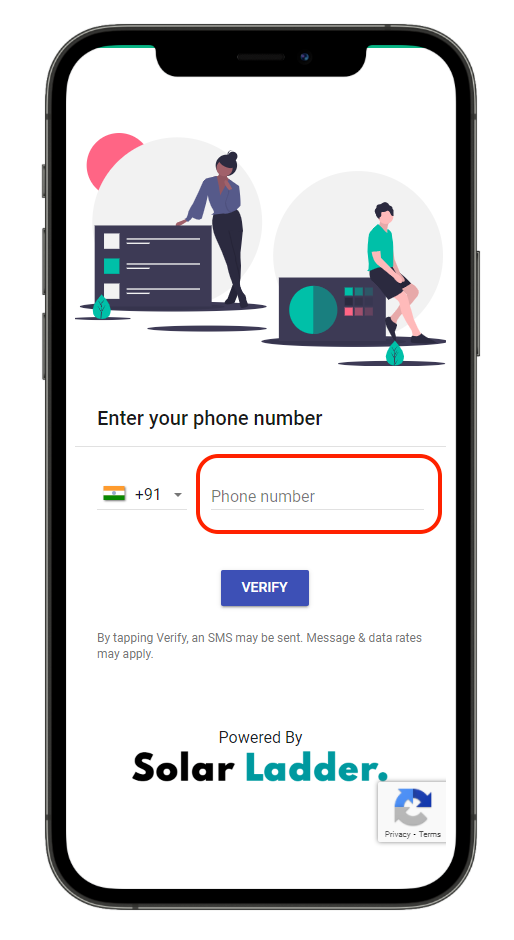
Step 3: Click on Verify

Step 4: Enter the 6-digit Code received

Step 5: Press Continue

Once you have logged into your account, you can see all the solar plants you have been assigned, the next O&M Cycle due.
To start O&M for any customer
Step 6: When you are at the Site and about to start the O&M Click on "View Details" of the Solar Plant
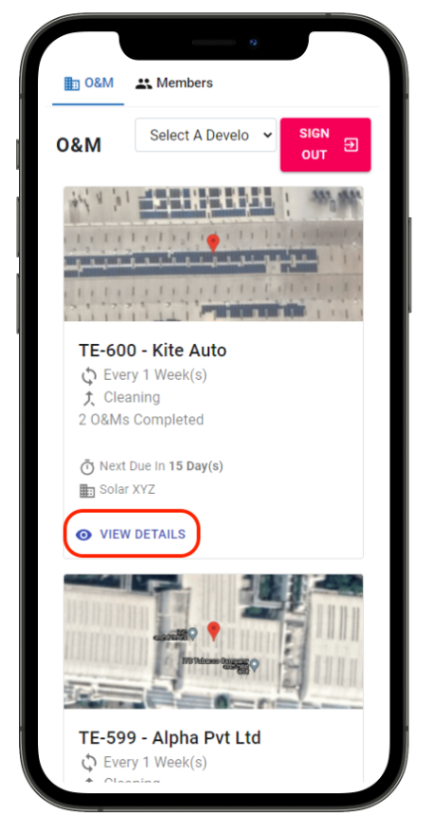
Step 7: Make Sure the date of the O&M Cycle is correct and Click on "Start O&M". Your O&M Cycle will be shown as In-Progress.

Step 8: Carry out your O&M at the Site
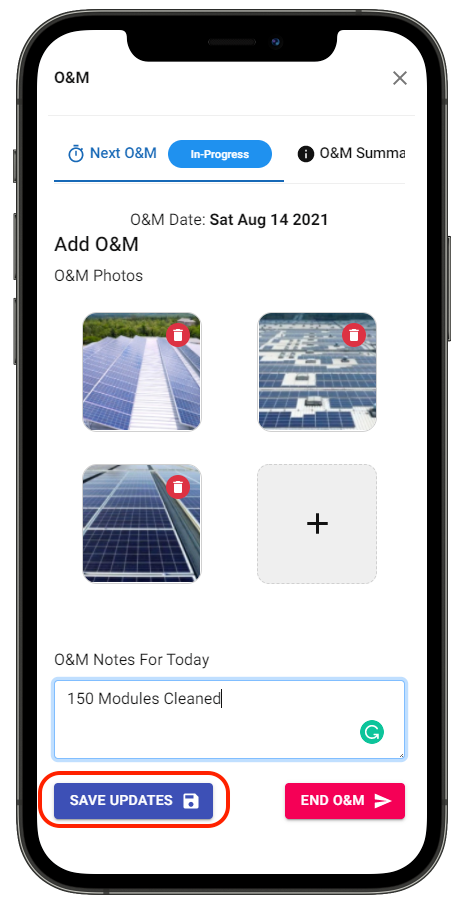
Step 9: Once O&M is done Click on "+" to add O&M Photos
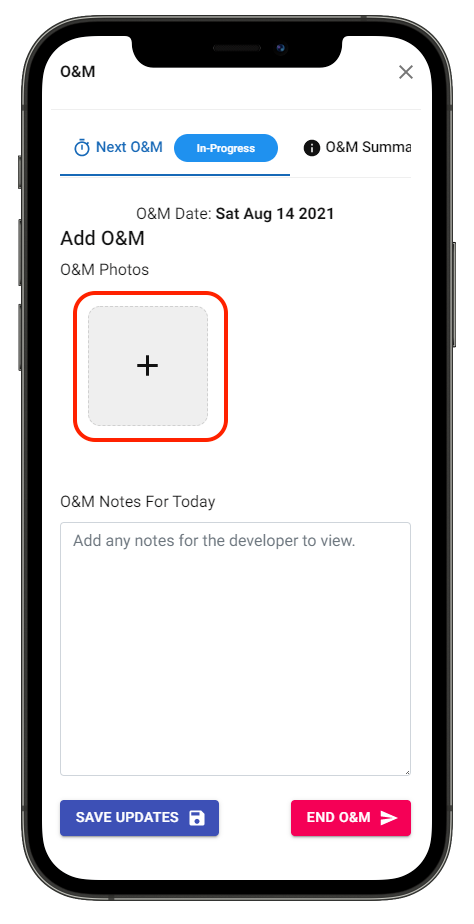
Step 10: Enter O&M Notes
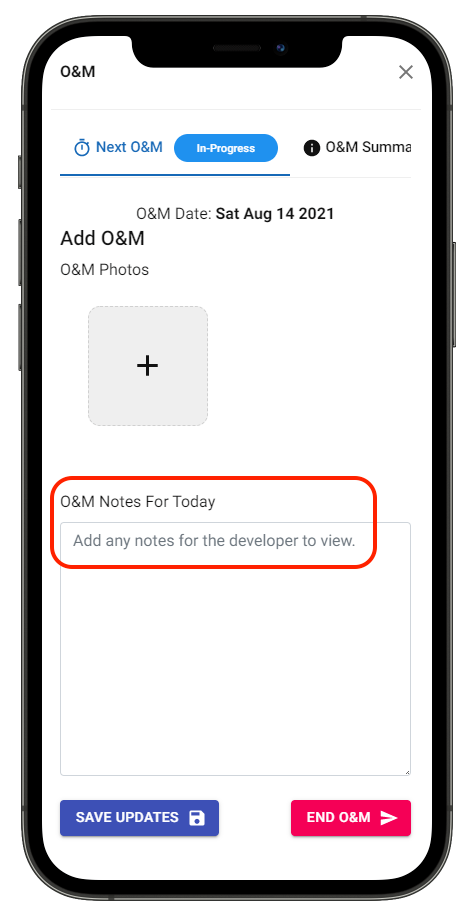
Step 11: Click on "Save Updates" to save changes
Scroll down to find the details of the information saved in "Previously Saved Information"
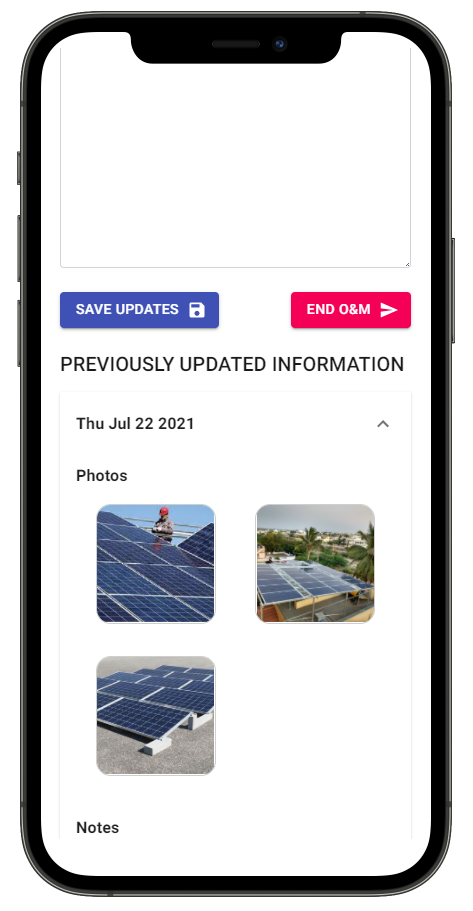
If you want to add more photos and notes, repeat Step 9, 10 & 11
Please Note: End O&M only once the work of that visit is complete
If the O&M Cycle of the project is complete and you want to End it,
Step 12: Click on "End O&M"
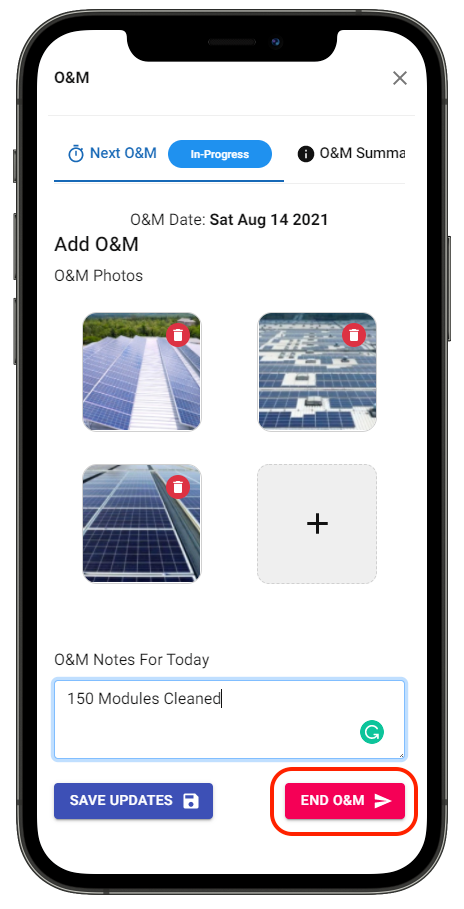
Step 13: Press "OK" to confirm