

How To Start an O&M on Solar Ladder
Step 1: Click on "View Details" of the project you want to start O&M for
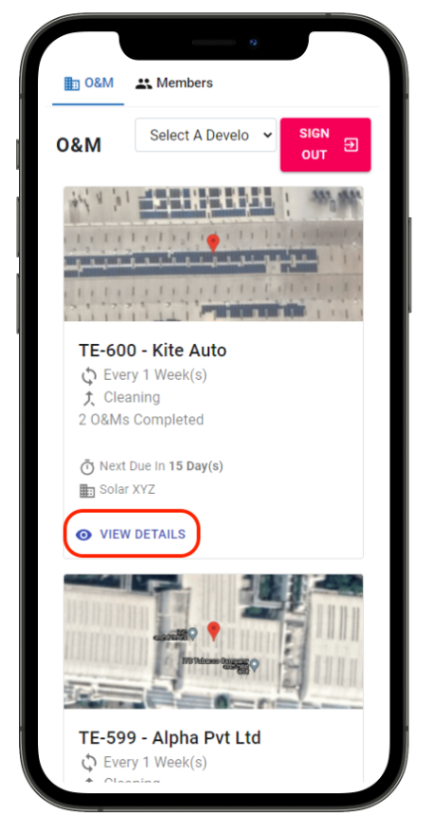
Step 2: Click on "Start O&M"

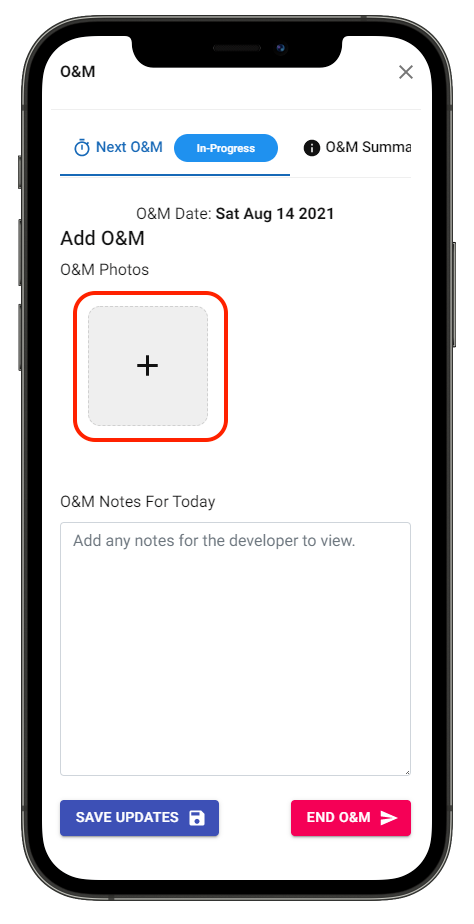
Step 3: Click on "+" to add O&M Photos
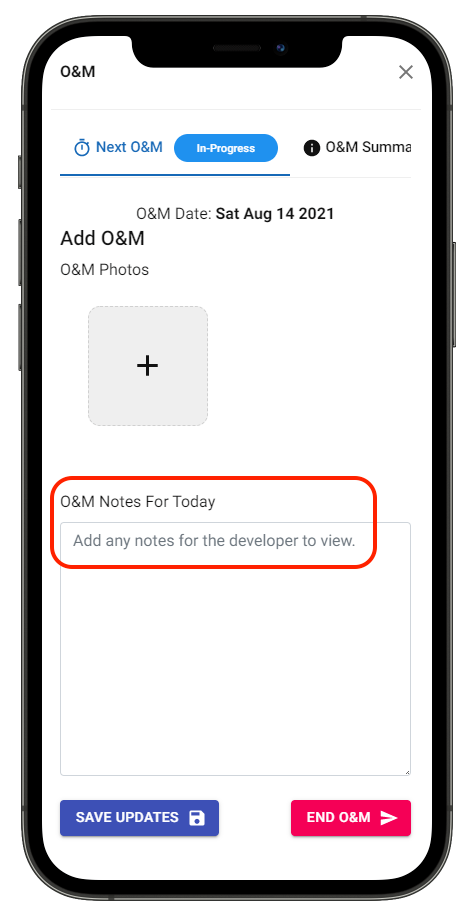
Step 4: Enter O&M Notes
Step 5: Click on "Save Updates" to save changes
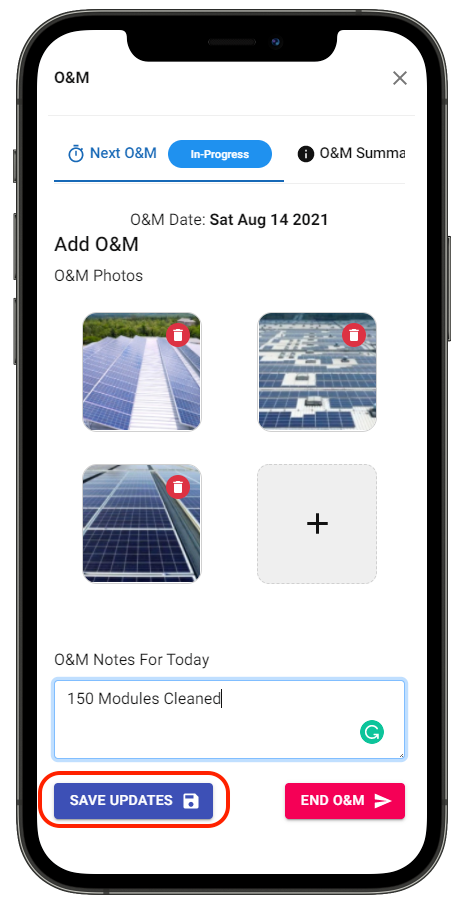
Scroll down to find the details of the information saved in "Previously Saved Information"
Please Note: Click on "End O&M" only when the O&M cycle is complete
If you want to add more photos and notes, repeat Step 3, 4 & 5
Share This Blog Post: